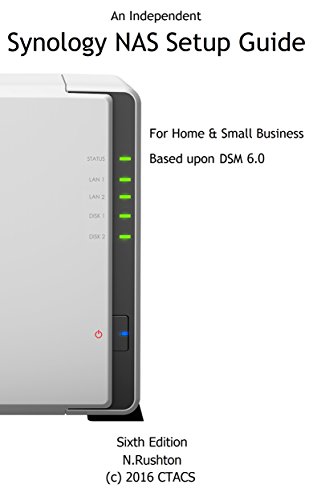


Synology NAS Setup Guide: Based on DSM 6.0
Book Details
Author(s)
Nick Rushton
Publisher
CTACS
ISBN / ASIN
B00IXSHUNG
ISBN-13
978B00IXSHUN2
Sales Rank
#259,556
Marketplace
United States 🇺🇸
Ratings & Reviews
No reviews yet — be the first!
No reviews yet.
Description
Sixth edition, with expanded and additional sections, fully refreshed for the new features in DSM 6.0. Updated March 2016.
With superb functionality and ease of use through the acclaimed DSM operating system, Synology DiskStations are the NAS of choice for the discerning purchaser. Whether it is the storage and sharing of information, the streaming of videos, music and photos to computers and smart devices, or the ability to have a private cloud that allows access to information from anywhere, the DiskStation can do it. But this power and flexibility comes at a price: setting up a DiskStation for the very first time can seem a daunting prospect. This guide, based around DSM 6.0 and with over 180 illustrations and screen shots and proven easy-to-follow instructions, will take you through the process from start to finish and help ensure that your home or small business network is a success. Whether you have just purchased a DiskStation, are about to, or simply want to find out more about Synology NAS and DSM, this guide will help you.
Contents:
1 PREPARATION
1.1 Choice of DiskStation
1.2 Choice of Hard Drives
1.3 RAID
1.4 Location
1.5 Electrical Considerations
1.6 Infrastructure
1.7 Computers and Devices
2 INSTALLATION OF DSM OPERATING SYSTEM
2.1 Installation Using Web Assistant
2.2 Installation Using Synology Assistant
2.3 Quick Tour of DiskStation Manager
2.4 Configure Networking
2.5 Creating Disk Volumes
2.6 Power Management
2.7 File Services
3 SHARED FOLDERS
3.1 Creating a Shared Folder
3.2 Enabling Home Folders
3.3 Deleting or Changing a Shared Folder
3.4 Encrypted Folders
4 USERS
4.1 Naming Conventions
4.2 Creating a User
4.3 Modifying or Deleting a User
4.4 Groups
5 ACCESSING THE DISKSTATION
5.1 Using a Browser (All)
5.2 From Windows Explorer/File Explorer (Windows)
5.3 Using Finder (OS X)
5.4 Accessing Shared Folders Using the Run Command (Windows)
5.5 Mapping Drives Manually (Windows)
5.6 Using Synology Assistant (Windows)
5.7 Using a Batch File (Windows)
6 CLOUD STATION AND REMOTE ACCESS
6.1 Overview of Cloud Station
6.2 Understanding QuickConnect: The Key to Cloud Station
6.3 Configuring Cloud Station
6.4 Installation of Cloud Station Drive Client
6.5 Cloud Sync
6.6 Advanced Remote Access Connectivity
6.7 Setting Up and Using a VPN
7 MULTIMEDIA & STREAMING
7.1 Audio Station
7.2 iTunes Server
7.3 Media Server (“DLNA”)
7.4 Video Station
7.5 Photo Station
7.6 Media Indexing
8 BACKUPS
8.1 Backing Up the DiskStation to an External Drive
8.2 Restoring Files from a Backup
8.3 Using an Internal Drive for Backups
8.4 Backing up the Server Configuration
8.5 NAS to NAS Backups
8.6 Backing up Computers to the DiskStation
8.7 Cloud Station Backup
8.8 Backing up Windows Computers using built-in Backup Program
8.9 Backing Up Macs – Time Machine
9 PRINTING
9.1 Sharing USB Printers
10 CONNECTING MOBILE DEVICES
10.1 DS File
10.2 File Browser
10.3 DS Audio
10.4 DS Video
10.5 DS Photo
10.6 DS Cloud
10.7 Using a Chromebook
11 SECURITY CONSIDERATIONS
11.1 Security Advisor
11.2 The Security Icon
11.3 Antivirus Essential
11.4 Switch Off Occasionally Used Services
11.5 Use Strong Passwords
11.6 2-Step Verification
12 HOUSEKEEPING & REPORTING
12.1 Info Center
12.2 Manually Checking the DiskStation Using Widgets
12.3 Using DS Finder on A Mobile Device
12.4 Checking the Health of the Disks
12.5 Resource Monitor
12.6 Checking for DSM Updates
12.7 Configure Automatic Email Notifications
12.8 Configure Push Service
13 MISCELLANEOUS & ADVANCED TOPICS
13.1 Package Center
13.2 Support Center
13.3 Changing the Desktop Wallpaper
13.4 Add Icons to the Desktop
13.5 Customizing the Login Screen
13.6 ACL (Access Control Lists)
13.7 Internet router does not supply DHCP
13.8 Internet Access Using a Proxy Server
13.9 DiskStation with Multiple Network Adapters
13.10 iSCSI
13.11 Resetting the Admin Password if Lost
13.12 Preparing the DiskStation for Disposal
With superb functionality and ease of use through the acclaimed DSM operating system, Synology DiskStations are the NAS of choice for the discerning purchaser. Whether it is the storage and sharing of information, the streaming of videos, music and photos to computers and smart devices, or the ability to have a private cloud that allows access to information from anywhere, the DiskStation can do it. But this power and flexibility comes at a price: setting up a DiskStation for the very first time can seem a daunting prospect. This guide, based around DSM 6.0 and with over 180 illustrations and screen shots and proven easy-to-follow instructions, will take you through the process from start to finish and help ensure that your home or small business network is a success. Whether you have just purchased a DiskStation, are about to, or simply want to find out more about Synology NAS and DSM, this guide will help you.
Contents:
1 PREPARATION
1.1 Choice of DiskStation
1.2 Choice of Hard Drives
1.3 RAID
1.4 Location
1.5 Electrical Considerations
1.6 Infrastructure
1.7 Computers and Devices
2 INSTALLATION OF DSM OPERATING SYSTEM
2.1 Installation Using Web Assistant
2.2 Installation Using Synology Assistant
2.3 Quick Tour of DiskStation Manager
2.4 Configure Networking
2.5 Creating Disk Volumes
2.6 Power Management
2.7 File Services
3 SHARED FOLDERS
3.1 Creating a Shared Folder
3.2 Enabling Home Folders
3.3 Deleting or Changing a Shared Folder
3.4 Encrypted Folders
4 USERS
4.1 Naming Conventions
4.2 Creating a User
4.3 Modifying or Deleting a User
4.4 Groups
5 ACCESSING THE DISKSTATION
5.1 Using a Browser (All)
5.2 From Windows Explorer/File Explorer (Windows)
5.3 Using Finder (OS X)
5.4 Accessing Shared Folders Using the Run Command (Windows)
5.5 Mapping Drives Manually (Windows)
5.6 Using Synology Assistant (Windows)
5.7 Using a Batch File (Windows)
6 CLOUD STATION AND REMOTE ACCESS
6.1 Overview of Cloud Station
6.2 Understanding QuickConnect: The Key to Cloud Station
6.3 Configuring Cloud Station
6.4 Installation of Cloud Station Drive Client
6.5 Cloud Sync
6.6 Advanced Remote Access Connectivity
6.7 Setting Up and Using a VPN
7 MULTIMEDIA & STREAMING
7.1 Audio Station
7.2 iTunes Server
7.3 Media Server (“DLNA”)
7.4 Video Station
7.5 Photo Station
7.6 Media Indexing
8 BACKUPS
8.1 Backing Up the DiskStation to an External Drive
8.2 Restoring Files from a Backup
8.3 Using an Internal Drive for Backups
8.4 Backing up the Server Configuration
8.5 NAS to NAS Backups
8.6 Backing up Computers to the DiskStation
8.7 Cloud Station Backup
8.8 Backing up Windows Computers using built-in Backup Program
8.9 Backing Up Macs – Time Machine
9 PRINTING
9.1 Sharing USB Printers
10 CONNECTING MOBILE DEVICES
10.1 DS File
10.2 File Browser
10.3 DS Audio
10.4 DS Video
10.5 DS Photo
10.6 DS Cloud
10.7 Using a Chromebook
11 SECURITY CONSIDERATIONS
11.1 Security Advisor
11.2 The Security Icon
11.3 Antivirus Essential
11.4 Switch Off Occasionally Used Services
11.5 Use Strong Passwords
11.6 2-Step Verification
12 HOUSEKEEPING & REPORTING
12.1 Info Center
12.2 Manually Checking the DiskStation Using Widgets
12.3 Using DS Finder on A Mobile Device
12.4 Checking the Health of the Disks
12.5 Resource Monitor
12.6 Checking for DSM Updates
12.7 Configure Automatic Email Notifications
12.8 Configure Push Service
13 MISCELLANEOUS & ADVANCED TOPICS
13.1 Package Center
13.2 Support Center
13.3 Changing the Desktop Wallpaper
13.4 Add Icons to the Desktop
13.5 Customizing the Login Screen
13.6 ACL (Access Control Lists)
13.7 Internet router does not supply DHCP
13.8 Internet Access Using a Proxy Server
13.9 DiskStation with Multiple Network Adapters
13.10 iSCSI
13.11 Resetting the Admin Password if Lost
13.12 Preparing the DiskStation for Disposal